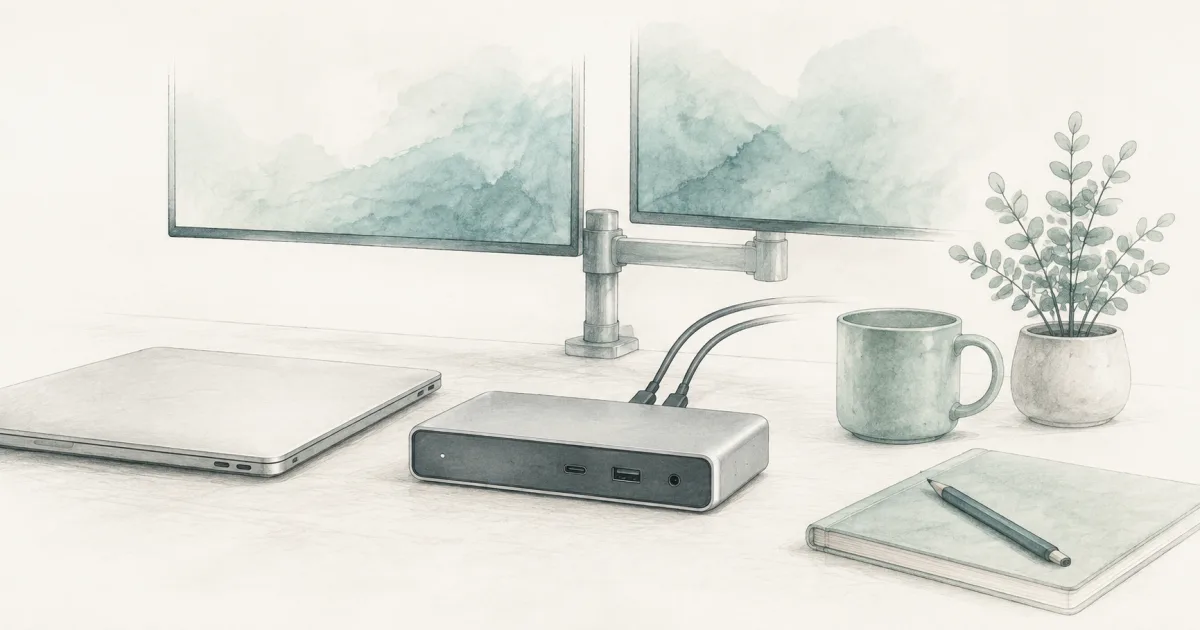
Best Laptop Docking Station (2026): Mac and Windows Tested
Desk accessories
The best laptop docking station turns one USB-C or Thunderbolt cable into dual monitors, Ethernet, USB ports, and laptop charging. Start with the CalDigit TS4 for a universal Mac and Windows desk, or the Plugable TBT4-UDZ when HDMI and DisplayPort mix on a tighter budget.
Our picks
A laptop docking station is the brick that turns a thin laptop into a real workstation. You get dual monitors, wired Ethernet, USB-A for the keyboard and webcam, and laptop charging through a single cable that docks and undocks in seconds. That is a different job from a compact USB hub for desk, which usually caps out at one clean display output.
Browse more desk accessories once the cable situation is sorted. If you want the dedicated USB-C sibling of this guide, the USB-C docking station guide covers lighter docks without Thunderbolt 4. A laptop stand for desk helps when the laptop screen still sits too low beside your monitors, and the right monitor arm clears desk space for the dock and cables.
Docking station vs USB hub vs power strip
If the standing desk still yanks cords when it rises, fix power and cable management first. Then add the dock so monitor and USB cables stay short on the desktop.
Top pick: CalDigit TS4
The CalDigit TS4 is the laptop docking station to beat for a universal dual-monitor desk. You get 18 ports, 98W of laptop charging, and a single Thunderbolt 4 cable that drives dual 4K monitors on Windows or dual 6K monitors on M1 Pro and Max Macs.
The port mix is the real reason it wins. Three downstream Thunderbolt 4 ports handle fast SSDs, a Thunderbolt monitor, and daisy chains. Five USB-A 10Gbps ports cover keyboards, mice, webcams, and USB sticks without a separate hub. 2.5 Gigabit Ethernet gives you faster wired networking when the home router supports it. UHS-II SD and microSD slots read camera cards at full speed.
Use it when your desk swaps between a Mac and a Windows laptop. Both will charge at full speed and both will drive dual 4K from one cable. Skip it if you only need one monitor; a cheaper dock or hub covers that for a lot less money.
Best value: Plugable 16-in-1 TBT4-UDZ
The Plugable 16-in-1 Thunderbolt 4 Dock (TBT4-UDZ) is the best value when your monitors already use HDMI and DisplayPort and you want both on the same dock. 100W charging covers most 14 and 16 inch laptops, and 2.5 Gigabit Ethernet plus seven USB ports keep the rest of the desk honest.
On Windows Thunderbolt 4 hosts, the TBT4-UDZ drives up to four 4K screens at 60Hz through DisplayPort Multi-Stream Transport. On M1 Pro or Max Macs, two 4K screens at 60Hz is the practical ceiling. Base M1 and M2 Macs are still limited to one external display by the laptop chip, not the dock, so a DisplayLink dock or hub would be a better fit there.
Use it when HDMI or DisplayPort monitors are already on the desk and you want to skip the adapters. Skip it if you need a downstream Thunderbolt port for a fast SSD; the host port is the only Thunderbolt 4 socket on this dock.
Best compact: OWC 11-Port Thunderbolt Dock
The OWC 11-Port Thunderbolt Dock is the right pick when you want Thunderbolt 4 speed in a smaller brick. You get three Thunderbolt 4 ports for daisy-chaining a monitor and storage, four USB-A 10Gbps ports for keyboards and drives, 96W laptop charging, and Gigabit Ethernet.
The footprint is closer to a compact USB hub than a workstation dock, so it fits a smaller sit-stand desktop or a hotel-room desk without dominating the surface. The trade is fewer ports than the CalDigit TS4 and only Gigabit Ethernet, not 2.5GbE.
Use it when one-cable docking and Thunderbolt 4 bandwidth matter more than maximum port count. Skip it if you run more than three USB-A peripherals at once or want 2.5GbE wired networking.
Shop the OWC 11-Port Thunderbolt Dock
Quick comparison
Compatibility checks before you order
- Confirm the laptop's USB-C or Thunderbolt port supports DisplayPort Alt Mode and Power Delivery. Plain USB-C ports without Alt Mode will not drive an external display through any dock.
- Match the dock's charging wattage to your laptop's USB-C charger. 96W to 100W covers most 14 inch and 16 inch laptops; smaller thin-and-lights are fine on lower.
- Count real monitors, not wishlist monitors. Dual and triple display behavior depends on the host chip; the dock cannot bypass Apple silicon's external display limits.
- Match cable types. HDMI-only screens need HDMI ports or adapters you already own; DisplayPort monitors need a DisplayPort cable or an active adapter.
- Update firmware on day one. CalDigit releases firmware updates that fix sleep and wake issues on Apple silicon. Plug the dock in, run the vendor utility, and reboot before judging stability.
Standing desk placement
Mount the dock on the moving desktop so monitor and USB cables rise with the top. If the dock is too heavy for a clamp tray, leave it on a fixed shelf and add slack loops at the host cable so the cable never becomes a hinge when the desk rises.
Keep the brick charger in the same tray as your cable management for desk plan. Heavy adapters hanging off thin USB-C ports are the most common cause of cracked laptop-side ports. A dual monitor stand frees the back of the desk for the dock and its cables.
Who should skip a full laptop docking station
Skip a full Thunderbolt 4 dock if you only need one HDMI monitor and a couple of USB-A ports, or if you already own a working Thunderbolt dock. A compact USB-C docking station or a USB hub for desk covers that for a lot less money and is easier to replace when you travel. Buy the smaller tool for the smaller job.
Bottom line
Buy the CalDigit TS4 when you want the most universal Thunderbolt 4 dock on the market and dual 4K or 6K monitors from one cable. Buy the Plugable 16-in-1 TBT4-UDZ when HDMI and DisplayPort mix on a tighter budget. Buy the OWC 11-Port Thunderbolt Dock when you want Thunderbolt 4 in a smaller brick and one-cable docking for a thin-and-light laptop. Keep the USB-C docking station and USB hub for desk guides for travel and lighter port jobs.
Frequently Asked Questions
What is the best laptop docking station for a home office?
Start with the CalDigit TS4 if you want a universal dock that works with both Mac and Windows, drives dual 4K or 6K monitors, and charges a 16 inch laptop at full speed. Pick the Plugable TBT4-UDZ when your monitors use HDMI or DisplayPort and you want quad-display potential on Windows. Choose the OWC 11-Port when you need a smaller dock that still runs Thunderbolt 4.
How is a laptop docking station different from a USB-C hub?
A docking station is built for monitors, Ethernet, charging, and many ports in one brick. A compact USB hub for desk is usually smaller and limited to one clean display output. For a USB-C-only path on a single HDMI screen, a hub is enough. For two or more extended monitors, you want a full dock.
Will a Thunderbolt docking station work with a USB-C laptop?
Mostly yes, with reduced bandwidth. Thunderbolt 4 docks are backward compatible with USB-C laptops that support DisplayPort Alt Mode and USB-C Power Delivery. You will lose Thunderbolt speeds and some downstream ports may not light up. Always check the dock manual for the host port spec.
Can one docking station drive two or three monitors?
Yes on the right host. The CalDigit TS4 drives dual 6K at 60Hz on M1 Pro or Max Macs, and dual 4K at 60Hz on Windows Thunderbolt 4 laptops. The Plugable TBT4-UDZ drives dual 4K at 60Hz on M1 Pro or Max, and up to four 4K screens on Windows Thunderbolt 4. Triple or quad monitors on base M1, M2, and M3 Macs is limited by the laptop chip itself, not the dock.
How much laptop charging do I really need?
Match the dock wattage to your laptop's USB-C charger. 96 to 100W covers a 14 inch MacBook Pro, most Dell XPS, ThinkPad, and Framework machines. For 16 inch MacBook Pro or heavy mobile workstations, look for 100W plus so the dock can charge while the laptop runs flat out.
Where should I place the dock on a standing desk?
Mount the dock on the moving desktop or a clamp tray so monitor and USB cables rise with the top. Park the brick charger in a tray with your cable management for desk plan so the heavy brick does not yank thin USB-C ports when the desk moves.
Should I get a Thunderbolt 4 dock or wait for Thunderbolt 5?
Thunderbolt 4 is still the practical pick for most home offices in 2026. Thunderbolt 5 docks add bandwidth and higher refresh-rate support, but most laptops and monitors do not need it yet. Buy Thunderbolt 4 now, and the dock will still work when you upgrade to a TB5 laptop later.
What about a USB-C docking station for a tighter budget?
If your laptop is USB-C only and you only need HDMI plus a couple of USB-A ports, a USB-C docking station is the lighter, cheaper class. Save the Thunderbolt 4 dock for dual-monitor setups or for laptops that already ship with Thunderbolt 4 or USB4.